

Quick Answer
The `robots.txt` file is a plain text file living at the root of your website that tells search engine crawlers which parts of your site they can or cannot access. It's crucial for managing how search engines crawl and index your content, helping prevent unnecessary server load and directing crawlers to the most important pages while avoiding `crawl errors`.
Every website has a story to tell, and every part of that story needs to be seen by the right audience. But sometimes, there are bits and pieces you'd rather keep private, or at least not broadcast to the entire internet through search engines. That's where a small, unassuming file called `robots.txt` comes into play. It acts like a digital traffic cop, guiding search engine bots, like Googlebot, on where they can and can't go on your site. Understanding this file isn't just a technical detail; it's a fundamental part of managing your online presence and ensuring your website is discovered efficiently and effectively.
What is `robots.txt` and How Does It Work?
The `robots.txt` file is a standard that websites use to communicate with web crawlers and other web robots. It's a foundational element of how search engines discover and organize information from across the web, effectively telling them which parts of your site they shouldn't request from your server.
What Exactly is a `robots.txt` File?
A `robots.txt` file is a simple text file that resides in the root directory of a website. Its primary purpose is to instruct web robots (like search engine crawlers) about which URLs on the domain should not be crawled or accessed. Think of it as a set of polite requests rather than strict commands. When a search engine bot visits your site, one of the first things it looks for is this `robots.txt` file. If it finds one, it reads the instructions before proceeding to crawl any other pages. This helps you manage server load, prevent certain content from appearing in search results (though not definitively), and improve the overall efficiency of crawling.
How Do Search Engines Use `robots.txt`?
Search engines, such as Google, employ automated programs called "crawlers" or "spiders" to discover and index web pages. Before these crawlers access any pages on your site, they first check for a `robots.txt` file at `yourdomain.com/robots.txt`. The instructions within this file guide the crawler's behavior. For instance, if you have a `Disallow: /admin/` directive, compliant crawlers will avoid accessing any pages within your `/admin/` directory.
It's crucial to understand that `robots.txt` prevents crawling, not necessarily indexing. A page might still appear in search results if it's linked from other websites, even if `robots.txt` disallows it. In such cases, Google might show a result with the URL but a message like "A description for this result is not available because of this site's `robots.txt`." For truly preventing indexing, you'd use a `noindex` meta tag or X-Robots-Tag HTTP header. As Google Search Central explains, `robots.txt` is primarily for managing crawl budget and server resources.
Common `robots.txt` Directives and Their Uses
Understanding the specific commands within `robots.txt` is key to controlling your site's crawl behavior. Each directive serves a distinct purpose in guiding search engine bots.
Understanding `User-agent` and `Disallow`
These are the two most fundamental directives you'll find in nearly every `robots.txt` file.
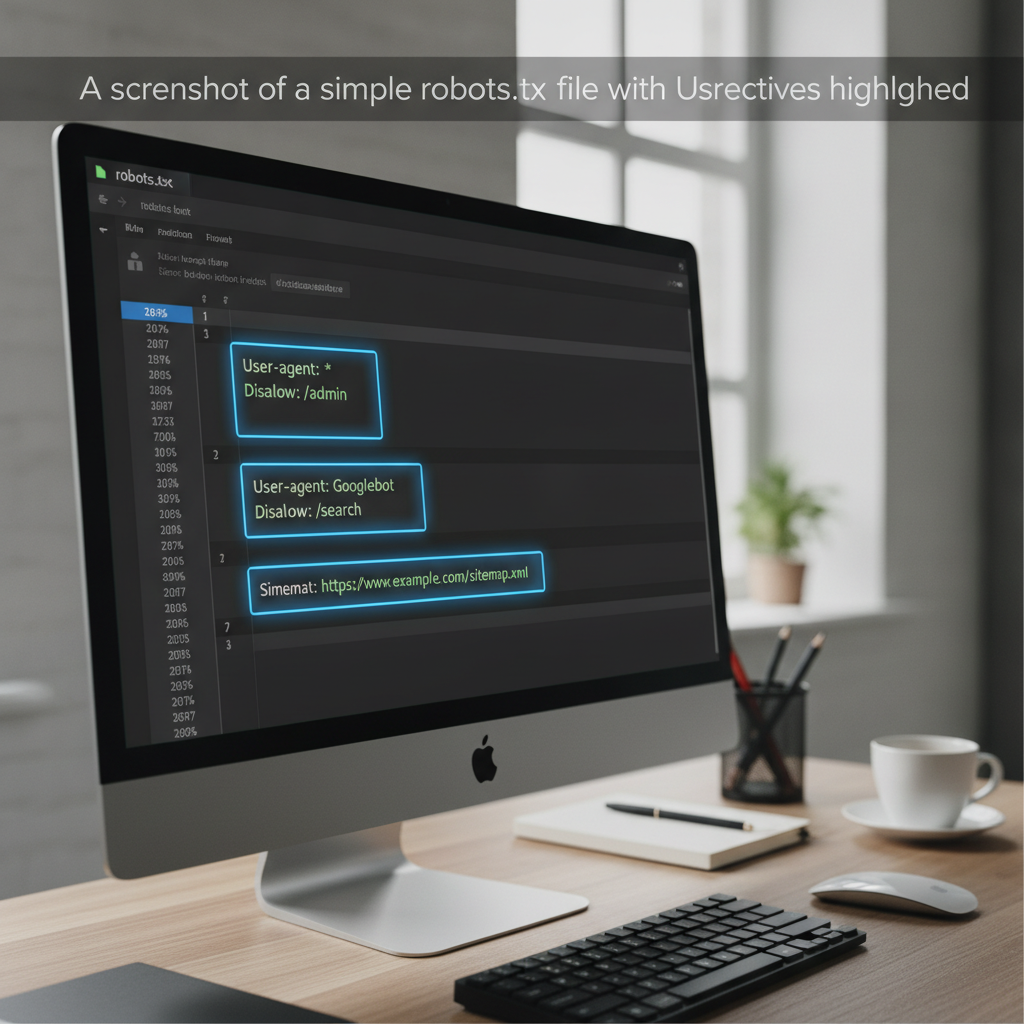
`User-agent`: This directive identifies the specific web crawler you're giving instructions to. For example, `User-agent: Googlebot` targets Google's main crawler. Using `User-agent: ` applies the rules to all web crawlers. You can have multiple `User-agent` blocks for different bots, allowing for fine-tuned control.
`Disallow`: This command tells the specified `User-agent` not to crawl a particular URL path. For instance, `Disallow: /private/` would instruct the bot to skip any content within the `/private/` directory. Leaving `Disallow:` empty means the bot can crawl everything.
```
User-agent:
Disallow: /wp-admin/
Disallow: /temp/
```
In this example, all bots are asked to avoid `/wp-admin/` and `/temp/` directories.
Exploring `Allow`, `Crawl-delay`, and `Sitemap`
Beyond the basics, these directives offer more nuanced control.
`Allow`: This directive is typically used in conjunction with `Disallow` to specify exceptions. For example, if you `Disallow: /folder/` but want to `Allow: /folder/public-page.html`, `Allow` would override the `Disallow` for that specific page. This is especially useful for opening up specific files or subdirectories within a generally blocked section.
`Crawl-delay`: This directive, primarily honored by older or less sophisticated crawlers, requests a delay between consecutive requests from the same server. `Crawl-delay: 10` would ask the bot to wait 10 seconds before requesting another page. Modern, well-behaved crawlers like Googlebot often manage their crawl rate dynamically without needing this directive, as explicitly stated in Google's documentation. For Googlebot, you'd adjust crawl rate in Google Search Console.
`Sitemap`: This directive isn't about blocking but about guiding. It specifies the location of your XML sitemap, which lists all the URLs you want search engines to crawl and index. Including `Sitemap: https://www.yourdomain.com/sitemap.xml` helps crawlers discover your important pages more efficiently.
When to Use `robots.txt` (and When Not To)
Knowing when and how to deploy `robots.txt` is crucial to avoid unintended consequences for your site's visibility.
Scenarios Where `robots.txt` is Essential
Staging or Development Sites: You definitely don't want search engines indexing your unfinished work. A `robots.txt` file can prevent this while development is underway.
Admin Areas and Private Content: Directories like `/admin/`, `/login/`, or folders containing sensitive user data should typically be disallowed to keep them out of public search results and reduce potential exposure.
Internal Search Result Pages: These pages often provide little value to external users and can create an overwhelming number of low-quality pages for crawlers, wasting crawl budget.
Duplicate Content: If you have multiple versions of content (e.g., printable versions, paginated archives) that you haven't canonicalized, `robots.txt` can sometimes help prevent crawlers from spending too much time on them.
Resource Management: For very large sites, `robots.txt` helps direct crawl budget by excluding less important sections, ensuring that critical content is crawled more frequently.
"A common scenario we encounter is a site launching with an active `robots.txt` blocking the entire site, leading to zero organic visibility for weeks. Always double-check your directives before deployment."
Misconceptions: `robots.txt` for Security
It's a common mistake to view `robots.txt` as a security measure. It absolutely is not. The `Disallow` directive simply asks compliant bots to stay away; it doesn't prevent a determined user or malicious bot from accessing those URLs directly if they know them. If you have sensitive information that must remain private, you need to secure it using password protection, server-side authentication, or by ensuring it's not publicly linked. Any path you `Disallow` in `robots.txt` essentially advertises its existence, making it easier for someone to try and access it directly.
How to Create and Implement Your `robots.txt` File
Creating and properly implementing your `robots.txt` file is straightforward, but it requires careful attention to detail to prevent `crawl errors` and ensure proper site indexing.
Step-by-Step Creation
- 1 Identify Pages to Block: Start by listing all directories, subdirectories, or specific files you do not want search engines to crawl. This might include `/wp-admin/`, `/checkout/`, `/private/`, or `/temp-files/`.
- 2 Choose Your User-agent: Decide if you want rules to apply to all bots (`User-agent: `) or specific ones (e.g., `User-agent: Googlebot`).
- 3 Write the Directives: Combine your `User-agent` with `Disallow` (and `Allow` if needed) commands. Each `Disallow` rule goes on a new line.
```
User-agent:
Disallow: /admin/
Disallow: /search/
Disallow: /images/private/
User-agent: specificbot
Disallow: /temp/
```
- 1 Include Sitemap (Optional but Recommended): Add the full URL to your XML sitemap(s) at the end of the file: `Sitemap: https://www.yourdomain.com/sitemap.xml`
- 2 Use a `robots.txt` Generator (Optional): For beginners or those who prefer a guided approach, many online `robots.txt generator` tools can help you create the file by simply inputting your desired disallows. They often ensure correct syntax and structure.
🥧 Common `robots.txt` Disallowed Directory Types (Estimated)
Testing and Deployment
Once your `robots.txt` file is ready, you need to place it in your website's root directory, accessible at `yourdomain.com/robots.txt`. Then, validate it.
- 1 Validate Your `robots.txt`: The `robots.txt` Tester tool in Google Search Console is invaluable. It allows you to paste your `robots.txt` content or view your live file and test specific URLs against your rules. This helps catch syntax errors or accidental blocks.
- 2 Monitor `Crawl Errors`: After deployment, regularly check the "Crawl stats" and "Index coverage" reports in Google Search Console. Pay attention to any sudden drops in crawled pages or increases in `crawl errors`, which could indicate an issue with your `robots.txt` file.
`robots.txt` Best Practices to Avoid `Crawl Errors`
Following best practices ensures your `robots.txt` file functions as intended, supporting your SEO efforts rather than hindering them.
Keeping It Simple and Focused
Be Specific: Avoid overly broad `Disallow` rules like `Disallow: /` unless you intend to block the entire site (e.g., for a development site). This is a common source of `crawl errors`.
Use Wildcards Judiciously: The asterisk `` can be used as a wildcard. `Disallow: /.pdf$` blocks all PDF files. While powerful, misuse can block more than intended.
Keep It Concise: Only include directives that are truly necessary. A complex `robots.txt` is harder to manage and more prone to errors. If a page isn't sensitive, let crawlers decide its value.
ℹ️ Info
Common `robots.txt` Pitfall: Accidentally blocking CSS or JavaScript files. Modern search engines need to crawl these resources to understand how your pages look and function, especially for mobile-friendliness. Ensure your `robots.txt` allows access to these critical assets.
Monitoring and Troubleshooting `Crawl Errors`
Even with careful planning, `crawl errors` can arise.
Google Search Console is Your Friend: Regularly review the "Indexing > Pages" report to see what Google has indexed, and the "Settings > Crawl stats" report to understand how Googlebot interacts with your site. Look for "Discovered - currently not indexed" or "Blocked by `robots.txt`" statuses.
Test URL Changes: Whenever you make significant changes to your site's structure or `robots.txt`, use the `robots.txt` Tester and URL Inspection tool in GSC to confirm the expected behavior.
Address `Crawl Errors` Promptly: If GSC reports a sudden spike in "Blocked by `robots.txt`" for important pages, investigate immediately. This often points to an incorrect `Disallow` rule or a syntax error.
Based on real-world results, a well-managed `robots.txt` can significantly reduce unnecessary `crawl errors` and improve site health.
📉 Estimated `Crawl Error` Reduction Post-Optimization
Key Takeaways
The `robots.txt` file is a plain text file at your site's root that guides search engine crawlers, telling them which areas of your site to avoid.
It primarily uses `User-agent` to target specific bots and `Disallow` to specify paths to block, but it is not a security measure.
Essential uses include blocking staging sites, admin areas, and internal search results to manage crawl budget and avoid `crawl errors`.
Always test your `robots.txt` file using tools like Google Search Console's `robots.txt` Tester to prevent accidental blocking of critical content.
- Regular monitoring of crawl reports helps ensure `robots.txt` is working as intended and contributes positively to your site's overall SEO health.
Empower Your Site's Search Visibility
Understanding and implementing `robots.txt` can feel like a delicate dance between giving search engines access and protecting your site's integrity. If you're looking to refine your crawl strategy, prevent `crawl errors`, or simply ensure your most valuable content shines without accidental blocks, expert guidance is available to help you craft a clear, confident path for discovery. Let's ensure your website's story is told exactly as you intend, without any digital missteps.
